
To make a personalized coloring book, turn a photo or a short description of your child into a cartoon character, write a story idea with their name in it, and let an AI coloring book maker draw every page with that same character. With MyColoring.ai a 10-page book plus a color cover takes a few minutes to set up and a few minutes to generate, and you download it as a PDF to print at home or at a print shop.
This guide walks through the whole process with screenshots, then gives story ideas, printing tips and the limits you should know before you start. We make MyColoring.ai, so we use it in the examples.
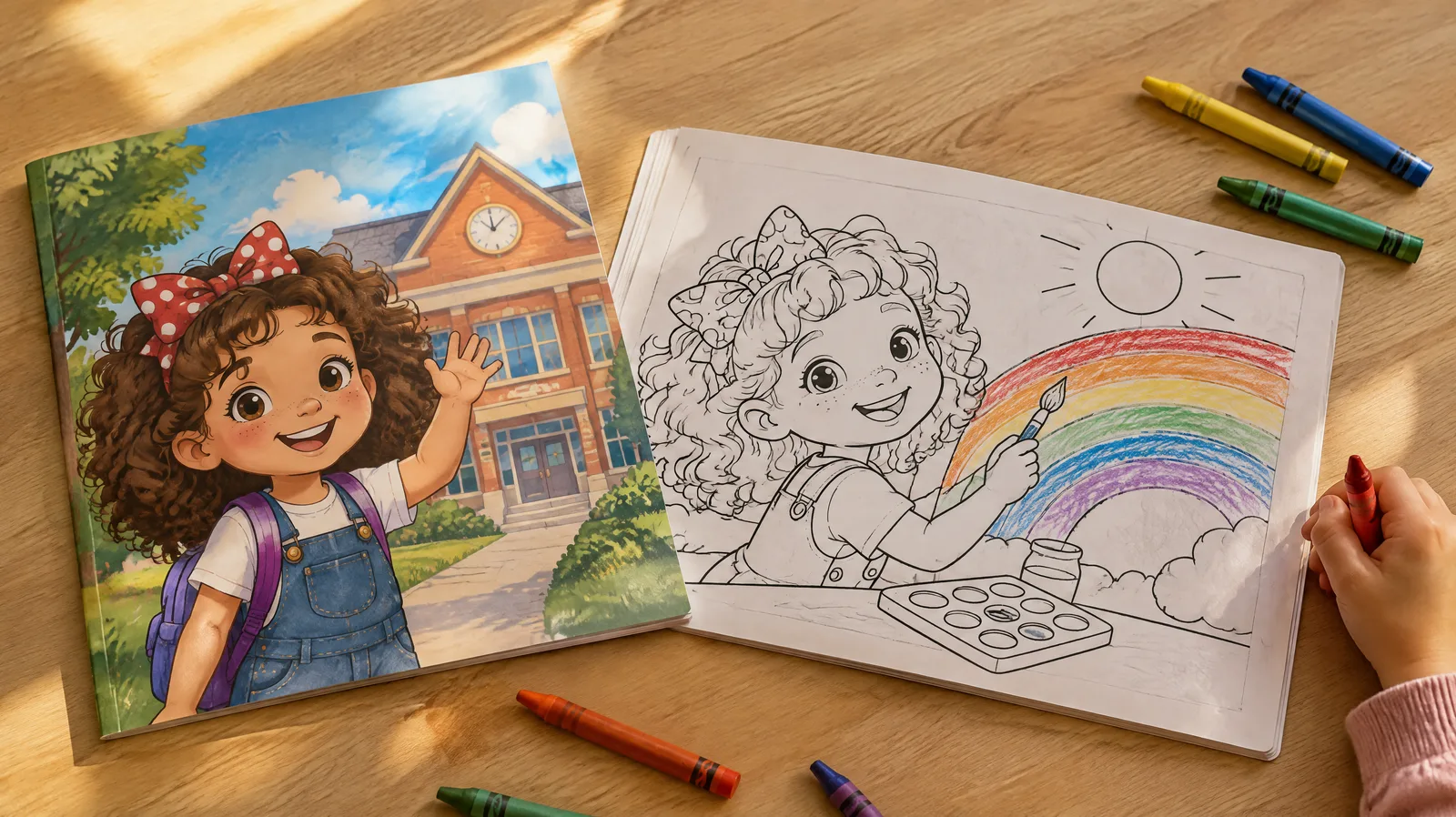
Illustration of a finished printed book. The screenshots below are from the real tool.
What you need before you start
| You need | Why | Tip |
|---|---|---|
| A clear photo or a description of your child | The AI turns it into a reusable cartoon character | A full-body photo in daylight, on a plain background, works best |
| A story idea | The AI plans one scene per page from it | Three to five small moments are enough: "packs a bag, meets a friend..." |
| The name you want on the cover | It goes in the title and the captions | Write it exactly as you want it printed |
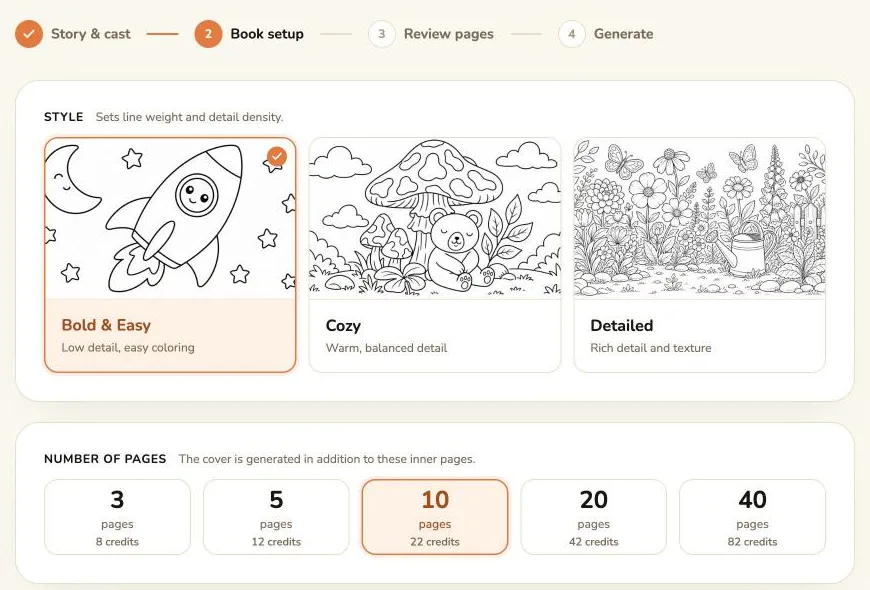
| A page count | 3, 5, 10, 20 or 40 pages, plus the cover | Young kids finish 10 pages; 20 pages suits a longer gift |
What it costs: every page is 2 credits and the cover counts as a page, so a 10-page book is 22 credits, a 20-page book is 42 credits and a 40-page book is 82 credits. Creating a character is 2 credits. New accounts can make a free sample (the cover and the first page) before paying; generating the rest of the book needs any paid plan or one-time pack on the pricing page. Failed pages are refunded.
Step 1: Turn your child into a character
Open the AI coloring book maker, choose Character Story, and type your story idea at the top. Then open Generate character and pick Image to character.
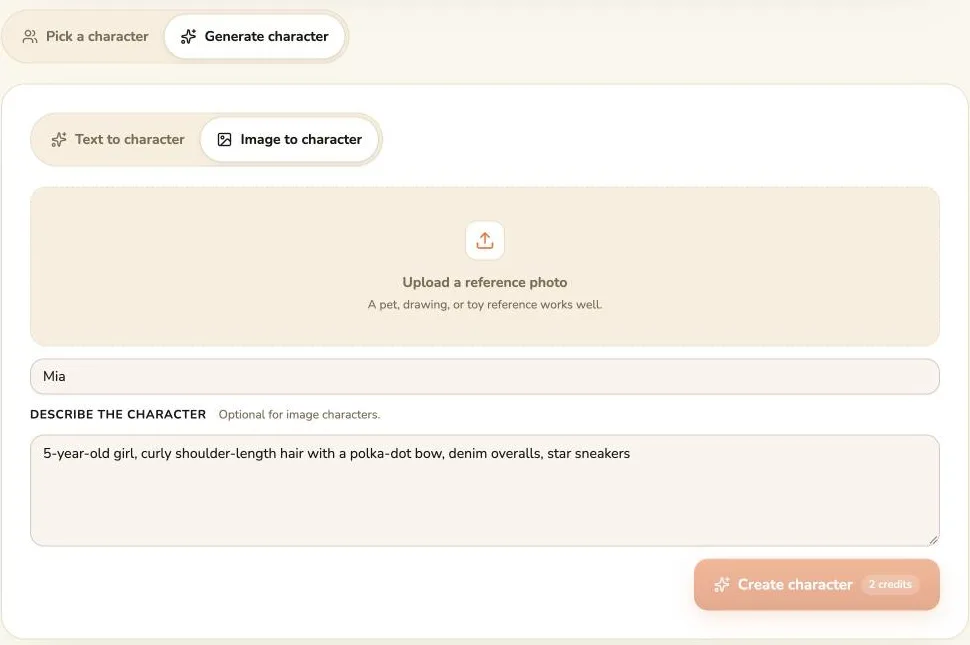
- Upload a reference photo (PNG, JPEG or WebP, up to 8 MB). A single child, facing the camera, with their whole outfit visible gives the clearest result.
- Character name: use your child's real first name, such as "Mia". The planner uses this name in page descriptions and captions.
- Describe the character (optional for photo characters): add the details you want on every page, like "curly hair with a polka-dot bow, denim overalls, star sneakers". This is the best way to keep a favorite outfit or accessory.
- Click Create character. After 30 to 120 seconds you get a black-and-white character sheet showing the front, side and back. If it doesn't look right, Redraw makes a new one for another 2 credits. When you like it, click Confirm & add to cast.
Rather not upload a photo? Use Text to character and describe your child in words instead. The result still feels like your kid when the description includes hair, glasses, a favorite outfit and a favorite toy.
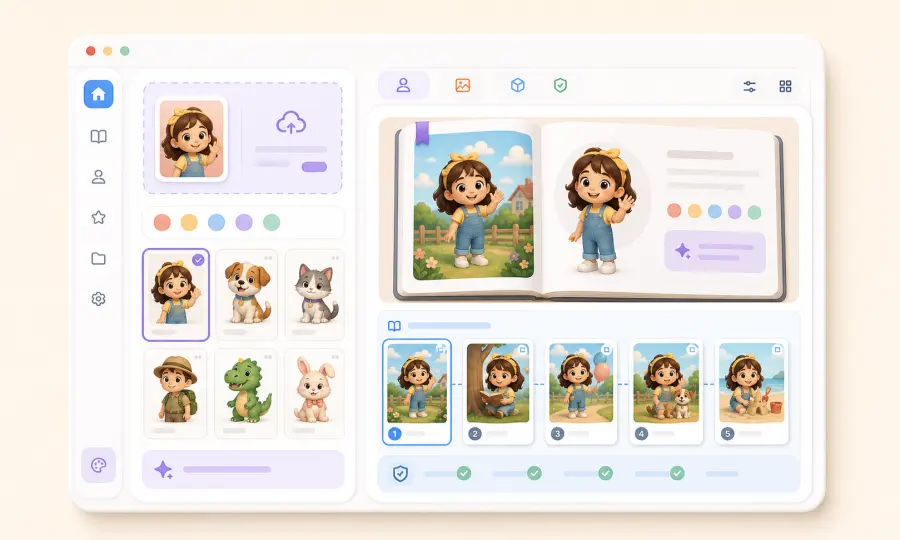
You can add up to 3 characters to a story, so a younger sibling, a best friend or the family dog can come along. Characters you create are private to your account and stay in My characters for the next book.
Step 2: Write a story idea that works on paper
The story idea (up to 1,000 characters) becomes the page plan, so write it as a list of moments that are easy to draw:
Mia's first day of kindergarten: she hangs up her backpack, paints a rainbow, shares her snack with a shy new friend, and waves goodbye to her teacher.
What makes a good coloring story:
- One action per moment. "Mia builds a sandcastle" draws better than "Mia has a great day at the beach".
- Real places and things from your child's life. The red front door, grandma's garden, the soccer field, the cat on the windowsill.
- A clear ending. A birthday cake, a hug, a sunset, a "The End" moment for the last page.
- Skip long dialogue. Speech doesn't fit in a picture. Put words in captions instead (step 4).
Step 3: Pick the style, page count and shape
| Setting | Choose this for a young child | Choose this for an older child or adult |
|---|---|---|
| Style | Bold & Easy: thick lines, big shapes | Cozy for balanced detail or Detailed for lots of texture |
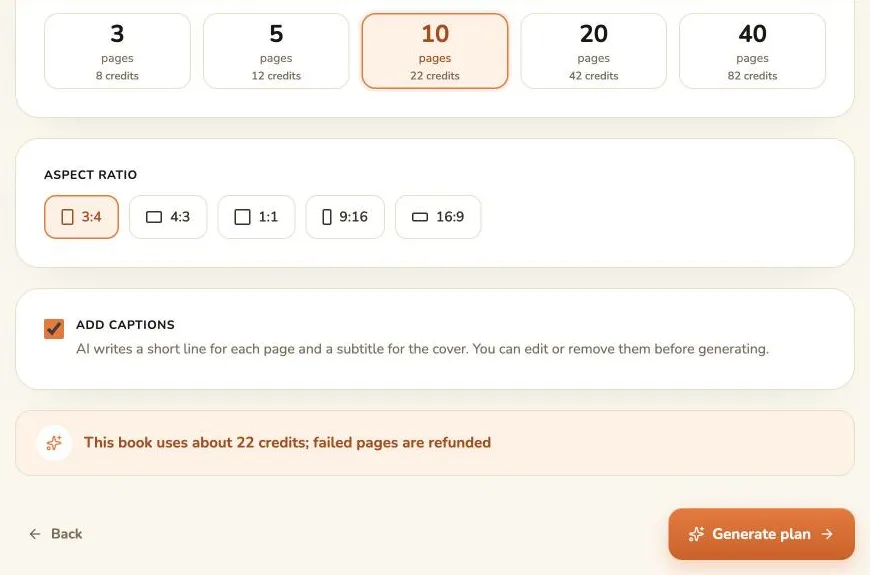
| Number of pages | 5 or 10 pages | 20 or 40 pages |
| Aspect ratio | 3:4 portrait (the default) fits a printed page best | 3:4, or 1:1 for a square book |
The page count is fixed once the plan is made, and changing the aspect ratio later throws away the plan, so decide these two before you continue.
Step 4: Add the name and a line of story to every page
Tick Add captions. The AI then writes a subtitle for the cover and one short line (up to 120 characters) under each page, in the language you wrote your story in. It does not translate your words.
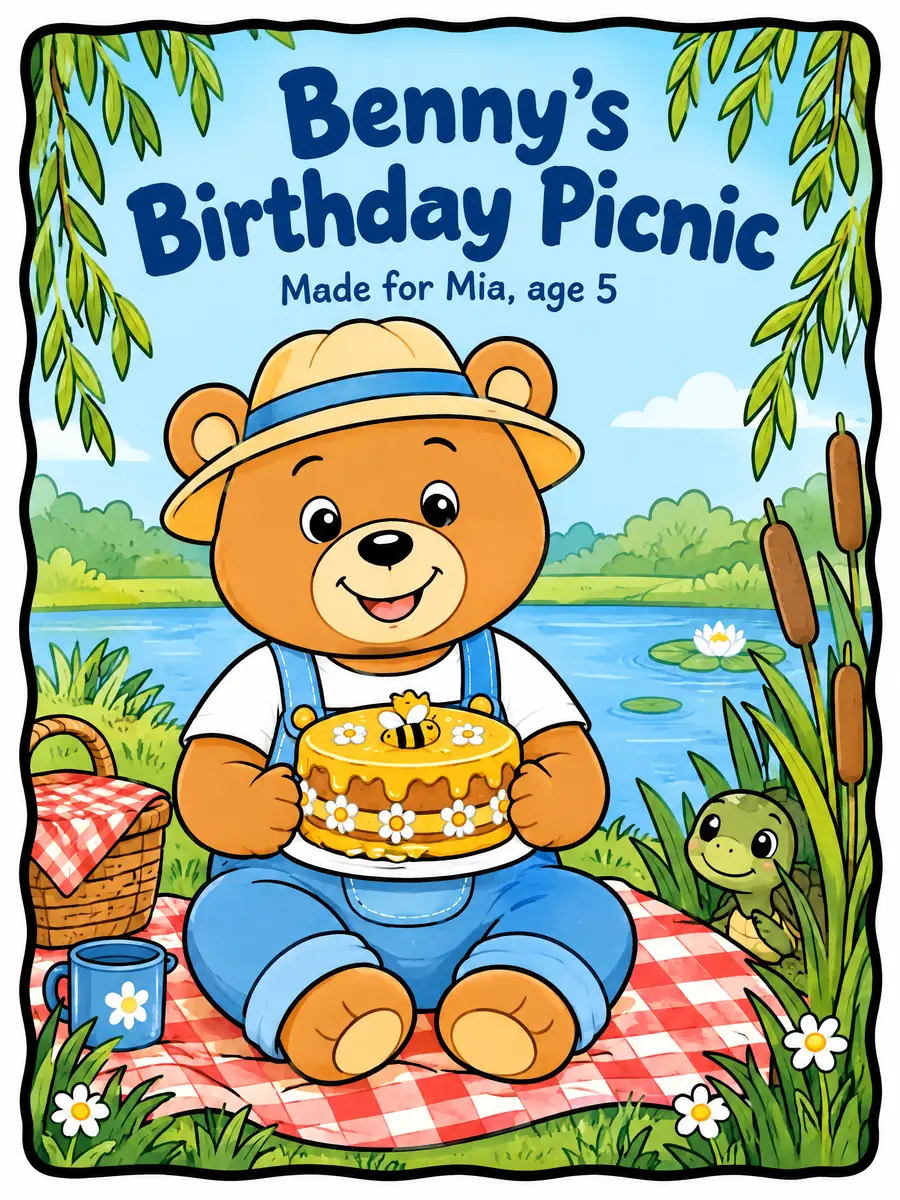
Captions turn the coloring book into a small picture book your child can "read" while coloring. A dedication on the cover is the easiest personal touch:
Prefer a picture-only book? Leave captions off and the pages are drawn without any text.
Step 5: Review the plan before you spend credits
Click Generate plan. Making the plan is free. You get the book title, the cover and one card per page.
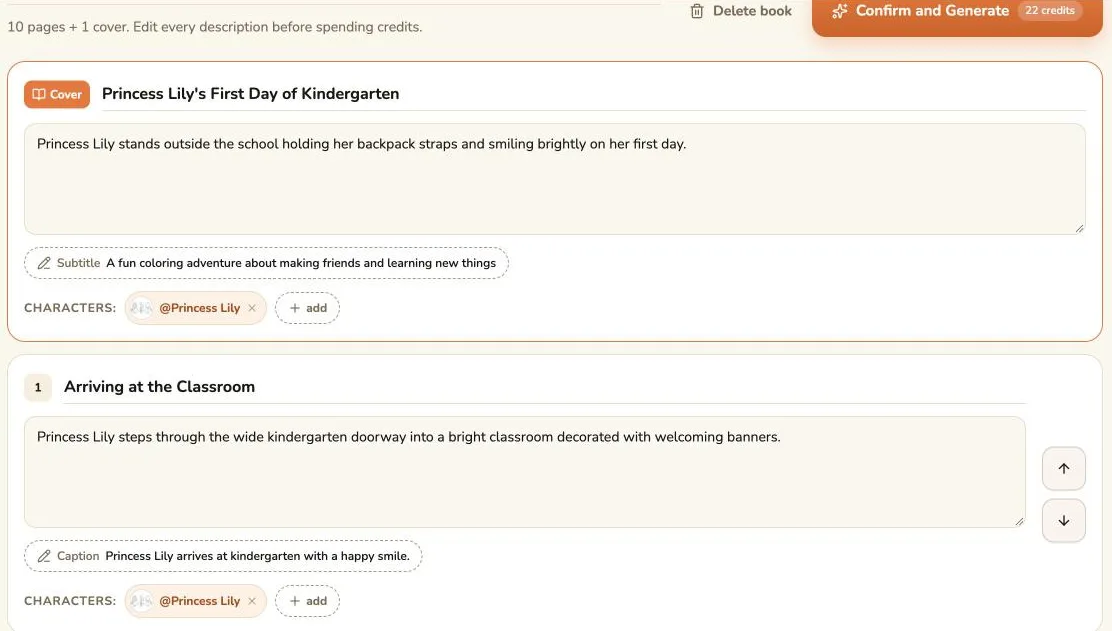
This is where personalization really happens. You can change:
- the book title (for example "Mia's First Day at School"),
- each page's title and scene description: add the real details, like "the blue lunchbox with stars",
- each caption and the cover subtitle,
- which characters appear on each page,
- the order of the pages (the cover always stays first).
Read every card now. Once a page is drawn, it can't be redrawn on its own, so this is your chance to fix a name, a pet's color or a scene that doesn't fit.
Step 6: Generate, check and download
Click Confirm and Generate (or Start generating for a free sample). A 10-page book usually takes a few minutes. If a page fails because of a temporary problem, it retries automatically, and if it still fails its credits are refunded. You can then use Retry page on that page.
When the book is ready, click Download PDF for one print-ready file, or Download PNG (ZIP) for separate images. Every book is also saved in My Creation, so you can come back and download it again. There is no watermark.
The PDF uses A4 pages. In the US, print it on letter paper with "Fit" or "Scale to fit" turned on; our guide to printing a coloring book covers paper, settings, binding and print shops.
12 personalized coloring book ideas
| Occasion | Story idea | Good page count |
|---|---|---|
| Birthday | Getting ready for the party, the cake, the friends, opening presents | 10 |
| First day of school | Backpack, classroom, new friend, art time, pickup | 10 |
| New baby brother or sister | Feeling the baby kick, the hospital visit, the first bath, big-sibling jobs | 10 |
| Moving house | Packing boxes, the moving truck, the new bedroom, the new park | 10 |
| Learning letters | "A is for Anna's apple" through a few letters of your child's name | 20 |
| Christmas or holidays | Decorating the tree, baking cookies, writing a wish list, the big morning | 10 to 20 |
| Family trip | The airport, the beach, the hotel pool, the ice cream | 10 |
| Grandparents | A day at grandma's: the garden, the kitchen, the photo album | 10 |
| Dentist or doctor visit | The waiting room, the big chair, the brave sticker | 5 |
| Potty training or bedtime routine | Each step of the routine, one per page | 5 to 10 |
| Pet adventure | Your child and the family dog on a treasure hunt | 10 |
| Classroom gift | One page per student activity, made by a teacher | 20 |
For a single extra page with your child's name in big letters, the name coloring page generator makes one in seconds. To turn a family photo into one realistic page, use Photo to Coloring Page.
Giving it as a gift (Christmas and birthdays)
- Print one copy to test. Check that lines are dark enough and the margins look right before you print several.
- Print single-sided on heavier paper so markers don't bleed through onto the next picture.
- Staple or coil-bind it. A stapled booklet from a copy shop is cheap and quick; a printed paperback from a print-on-demand service looks most like a store-bought book but takes longer to arrive.
- Leave time for shipping. If you order a printed copy online for Christmas, make the book by early December. Printing at home or at a local copy shop works up to the last day.
- Add crayons and a pencil case, and write a note on the first page.
What to know before you start
- It's a cartoon, not a portrait. The character keeps your child's hairstyle, clothes and key details, but it won't be a photo-accurate likeness.
- Characters usually stay consistent, extra characters less so. A character you created stays recognizable across pages. A pet or friend that only appears in the story text, without its own character, may change from page to page; give it a character of its own if it matters.
- Finished pages can't be redrawn one by one. Fix details in the plan first. Only pages that failed can be retried.
- Page counts are fixed choices. You can make 3, 5, 10, 20 or 40 interior pages plus the cover.
- No third-party characters for books you sell. Selling the book needs a paid plan and original characters. If you plan to sell on Amazon, read our guide to making a KDP coloring book with AI.
Ready to try? Open the AI coloring book maker, start with your child's name, and make a free sample of the cover and first page first.