
The AI coloring book maker turns one idea into a complete coloring book: a color cover plus 3 to 40 black-and-white pages in the same style, ready to download as a PDF. This guide covers every step and setting. For a walkthrough with a story about your own child, see how to make a personalized coloring book.
The four steps
| Step | Screen label | What you do | Cost |
|---|---|---|---|
| 1 | Story & cast or Theme | Write your idea; pick or create characters | 2 credits per new character |
| 2 | Book setup | Choose style, number of pages, aspect ratio, captions | Free |
| 3 | Review pages | Read and edit the plan: titles, scenes, captions | Free |
| 4 | Generate | Draw the cover and pages, then download | 2 credits per page, cover included |
You can browse and fill in the setup without an account. You sign in when you click Generate plan or Create character, and the tool continues where you left off (an uploaded photo has to be uploaded again).
Step 1: Choose Character Story or Theme Collection
| Mode | Use it for | You enter |
|---|---|---|
| Character Story | A story where the same characters appear on every page: your child, a pet, a mascot | A story idea (up to 1,000 characters) and 1 to 3 characters |
| Theme Collection | A set of varied pages around one subject: ocean animals, dinosaurs, mandalas, letters | A theme (up to 120 characters), or a preset or random starter |
Characters (Character Story only):
- Pick a character from your own characters or the public ones.
- Text to character: type a name and a short visual description.
- Image to character: upload a photo, drawing or toy (PNG, JPEG or WebP, up to 8 MB) and optionally describe it.
- Each new character is a black-and-white sheet with front, side and back views, made in 30 to 120 seconds for 2 credits. Redraw makes a new version for another 2 credits; Confirm & add to cast adds it to the book. Your characters are private and saved for future books.
Step 2: Book setup
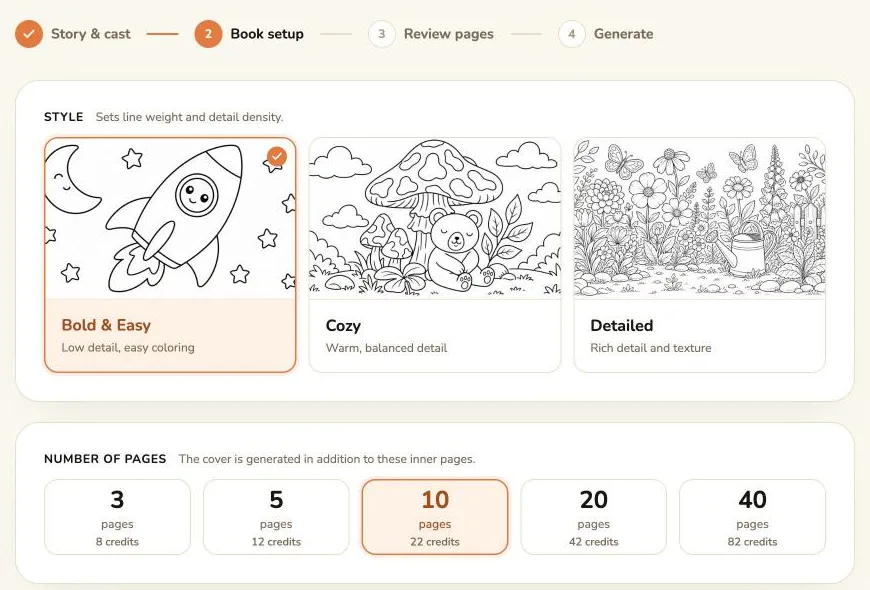
- Style: Bold & Easy (thick lines, big shapes, best for young kids), Cozy (balanced detail, the default) or Detailed (rich texture, for older kids and adults).
- Number of pages: 3, 5, 10, 20 or 40 pages, plus the cover. The cost is shown on each option.
- Aspect ratio: 3:4 (default, best for printing), 4:3, 1:1, 9:16 or 16:9.
- Add captions: off by default. When on, the AI writes a subtitle for the cover and one line (up to 120 characters) under each page, in the language of your idea. With captions off, pages have no text.
Click Generate plan. Making the plan is free.
Step 3: Review the plan
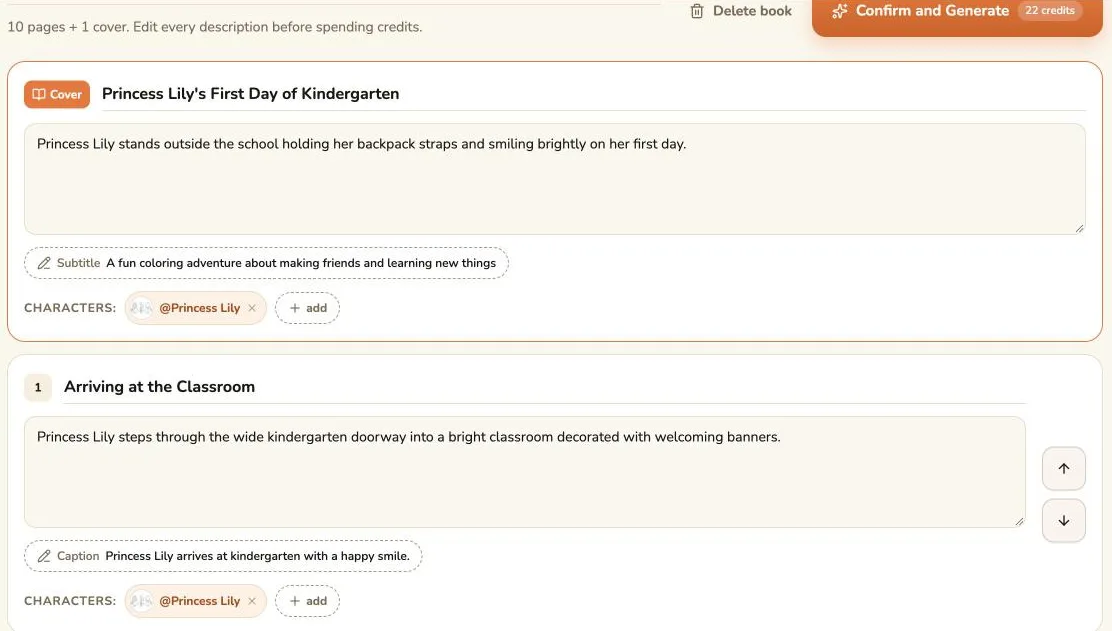
Before any page is drawn you can edit the book title, each page's title and scene description, the captions and cover subtitle, the characters on each page, and the page order (the cover always stays first). The page count can't change at this point, and switching the aspect ratio discards the plan.
Take your time here: finished pages can't be redrawn one at a time, so this is where you fix names, colors and scenes. If you don't want the book after all, Delete book removes it.
Step 4: Generate
What you see depends on your account:
- Not on a paid plan yet: Start generating makes a free sample of the cover and page 1 (free once per account; later samples use your credits). Then Unlock the whole book takes you to checkout, and after payment the remaining pages start automatically.
- On a paid plan or after buying a credit pack: Confirm and Generate draws the whole book.
Credits are taken when a page starts. A 10-page book usually finishes in a few minutes, and you can leave the page and come back. If a page fails, it retries automatically and is refunded if it still fails; see what to do when a page fails.
After it's done
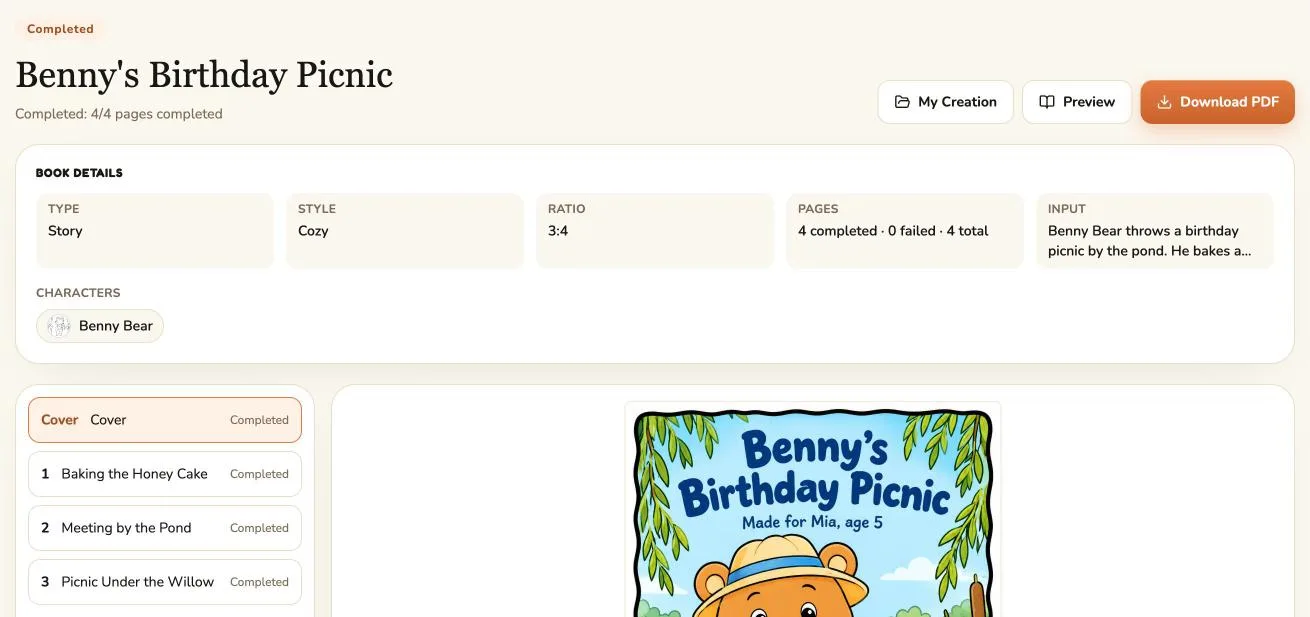
- Download PDF or Download PNG (ZIP): see how to download your coloring book.
- Print it: our guide to printing a coloring book covers settings, paper and print shops.
- Find it later: every book stays in My Creation under the Coloring Book filter. Planned and unfinished books show a button such as Continue, Start generating or Generate the remaining pages.
Costs at a glance
| Interior pages | Pages including cover | Credits |
|---|---|---|
| 3 | 4 | 8 |
| 5 | 6 | 12 |
| 10 | 11 | 22 |
| 20 | 21 | 42 |
| 40 | 41 | 82 |
A one-time pack of 200 credits covers several books; see the pricing page for every plan. Every paid plan and pack includes commercial use.